





Hey there, iPhone 6s users! As a 6s battery supplier, I've seen firsthand how frustrating it can be when your phone's battery drains super fast, especially due to background apps. In this blog, I'm gonna share some practical tips on how to reduce the battery consumption of background apps on your iPhone 6s.
First off, let's understand why background apps eat up so much battery. When apps run in the background, they're constantly doing stuff like checking for updates, syncing data, and using location services. This continuous activity can really take a toll on your battery life.
1. Review and Limit Background App Refresh
One of the main culprits of high battery consumption is the Background App Refresh feature. This feature allows apps to update their content in the background, so when you open them, the latest info is right there. But it also means these apps are using your battery even when you're not actively using them.
To check and limit this feature, go to your iPhone 6s Settings, then tap on "General," and select "Background App Refresh." Here, you'll see a list of all your apps. You can either turn off the feature entirely by toggling it off at the top, or you can go through the list and individually disable Background App Refresh for apps that you don't really need to be updated in the background. For example, apps like games or some less - frequently used productivity apps can be turned off. This way, they won't be constantly using your battery to refresh their content.


2. Manage Location Services
Location services are another big battery drainer. Many apps use your location to provide you with relevant info, like nearby restaurants or traffic updates. But not all apps need to access your location all the time.
Go to your iPhone 6s Settings, then tap on "Privacy," and select "Location Services." Here, you'll see a list of apps that use location services. You can turn off location services completely if you don't need them at all. Or, you can set different levels of access for each app. For instance, you can set some apps to "While Using the App" so they only access your location when you're actually using them. Others that you rarely use and don't really need location access can be set to "Never." By managing location services, you can significantly reduce the battery consumption of these apps.
3. Disable Push Notifications
Push notifications are great for keeping you informed about new messages, updates, and events. But they also mean that apps are constantly communicating with the server to check for new notifications, which uses battery power.
To disable push notifications, go to your iPhone 6s Settings, then tap on "Notifications." Here, you'll see a list of all the apps that can send you notifications. You can go through the list and turn off push notifications for apps that you don't really need to be notified about. You can also customize the way notifications are displayed for each app. For example, you can turn off the sound or vibration for some apps, which will also save a bit of battery.
4. Close Unused Apps
Sometimes, apps can keep running in the background even when you think you've closed them. To close apps on your iPhone 6s, double - click the Home button. This will bring up the App Switcher. You can then swipe up on the apps you want to close. Make sure to close any apps that you're not currently using, especially resource - intensive ones like video - streaming apps or large - scale games.
5. Update Your Apps and iOS
App developers are constantly working on improving their apps, and sometimes these improvements include better battery management. So, make sure to keep your apps up - to - date. You can do this by going to the App Store, tapping on your profile icon at the top right, and then selecting "Updates."
Also, updating your iOS to the latest version can help with battery optimization. Apple often releases updates that fix bugs and improve the overall performance of your iPhone, including battery life. Go to your iPhone 6s Settings, tap on "General," and select "Software Update" to check for and install the latest iOS version.
6. Consider Battery - Saving Modes
Your iPhone 6s has a Low Power Mode that can help you save battery when you're running low. When you turn on Low Power Mode, your phone will reduce some features like background app refresh, email fetch, and visual effects to conserve battery. To turn it on, go to your iPhone 6s Settings, then tap on "Battery," and toggle on "Low Power Mode."
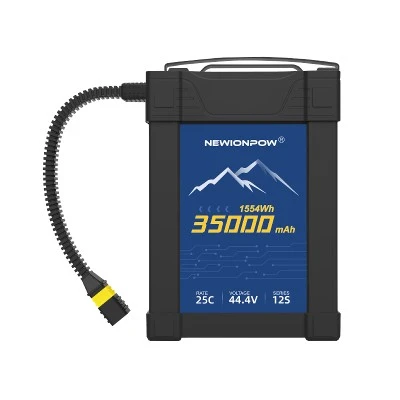
Now, I know sometimes, even with all these tips, you might still need a more powerful battery for your iPhone 6s. That's where we come in as a 6s battery supplier. We offer a range of high - quality batteries for your iPhone 6s. If you're looking for a reliable battery, check out our 22.2V 16000mAh Lipo Battery, Lipo 22000mAh 6S Battery, and 22.2V 30000mAh Drone Battery. These batteries are designed to provide long - lasting power for your device.
If you're interested in purchasing our batteries or have any questions about battery compatibility and installation, don't hesitate to reach out. We're here to help you get the best battery solution for your iPhone 6s.
References
- Apple Support. "Manage battery life and performance on your iPhone."
- Various app developer blogs for info on app - specific battery optimization.